
Managing presentation inputs from multiple speakers smoothly
Clear ownership matters more than last-minute improvisation. Managing presentation inputs from multiple speakers works best when everyone rehearses together, follows an agreed speaking order, and knows who controls the slides. For a virtual presentation using one master deck, assign one person to share the screen and advance the slides.
Coordinating several speakers can feel demanding, especially when slides, handovers, timing, and audience questions all need attention. A shared plan makes these moving parts easier to manage and gives each presenter a clear role.
This guide covers how to rehearse the presentation, test the technology, organize slide sharing, and set expectations for format and speaking order. It also explains how a moderator can guide Q&A so every presenter has a chance to contribute. With the groundwork in place, speakers can focus on their content while the session flows as one connected presentation.
Key Takeaways
- Rehearse with all presenters, test the sound, and practise transitions so handovers feel coordinated.
- Bring materials into a shared deck and assign one person to manage screen-sharing and slide navigation.
- Set expectations for format, speaking order, timing, and shared presentation guidelines before the event.
- Use a moderator to direct questions, balance speaking time, and make space for every presenter to contribute.
1. Rehearsing the presentation and checking technology
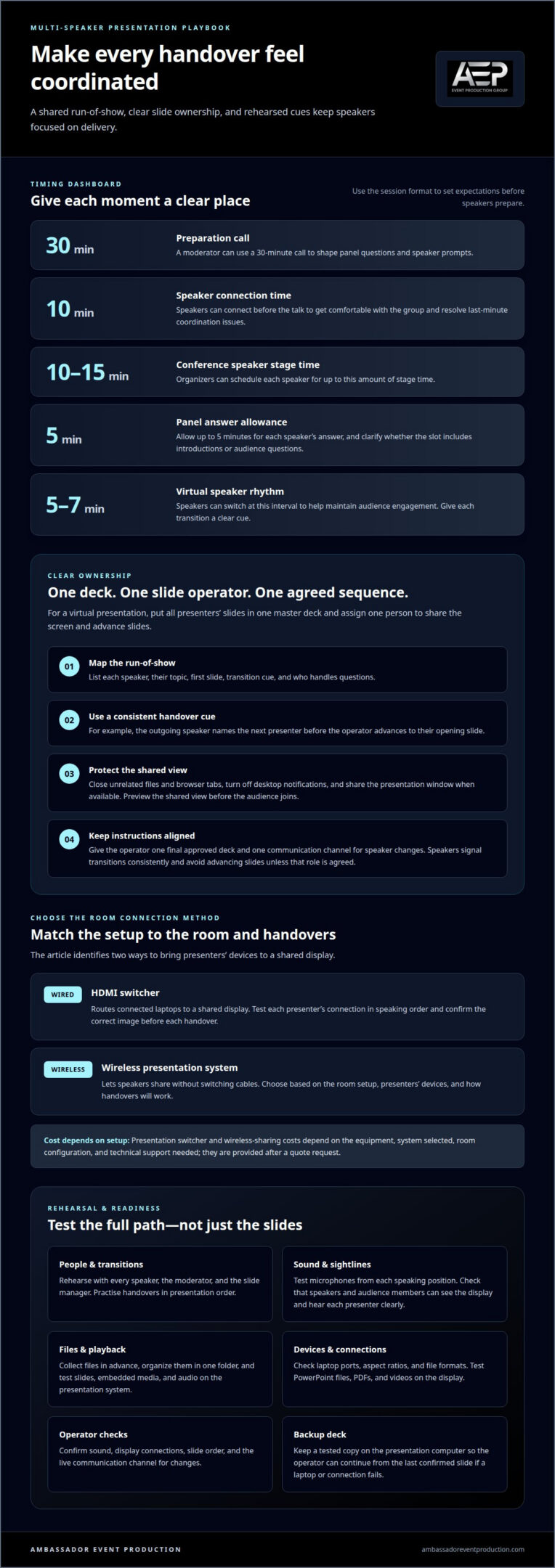
Schedule a rehearsal with every speaker, the moderator, and the person managing slides. Test microphones, room sound, screen sharing, and each handover in presentation order. A 30-minute preparation call can help a moderator shape panel questions and speaker prompts. Speakers can also connect 10 minutes before the talk to become comfortable with the group and resolve last-minute coordination issues.
An HDMI switcher routes connected laptops to a shared display, while a wireless presentation system lets speakers share without switching cables. Choose the approach based on the room setup, presenters’ devices, and how handovers will work.
Costs for presentation switchers and wireless sharing systems depend on the equipment and setup required, and are provided after a quote request. The deciding factors include the system selected, the room configuration, and the technical support needed.
Plan for a display or projector, a way to connect each presenter’s laptop, presentation audio, and someone responsible for switching inputs. Match the connection method to the equipment already in the room.
To connect several laptops to one display, route each laptop through the agreed switching method. Test every presenter’s connection in speaking order, then confirm the correct image appears before each handover.
Collect presentation files in advance, place them in one clearly organized folder, and open each file during rehearsal. Check that slides, embedded media, and audio play as intended on the presentation system.
Ask speakers to identify their laptop ports, aspect ratios, and file formats before rehearsal. Test PowerPoint files, PDFs, and videos on the display, then adjust the setup if content looks distorted or fails to play.
Before the session, the AV operator should test sound and display connections, confirm the slide order, and rehearse speaker handovers. During the presentation, the operator follows the agreed sequence and monitors the live communication channel for changes.
Prepare a backup by keeping a tested copy of the deck on the presentation computer. If a laptop or connection fails, the operator can switch to the backup and continue from the last confirmed slide.
For accessibility, check that speakers and audience members can see the display and hear each presenter clearly. Keep sightlines open, and test microphones from each speaking position.
2. Assigning slide-sharing and navigation responsibility
For a virtual presentation with several speakers, place every presenter’s slides in one master deck and share it before the event. Assign one person to share the screen and advance the slides. This gives the session a clear operator while speakers focus on delivery instead of managing competing screen shares. Agree on a handover cue, such as the outgoing speaker naming the next presenter before the operator advances to their opening slide.
Add a simple navigation map to the run-of-show: list each speaker, their first slide, and where they take over. For example, the operator can keep the deck open in presentation mode and follow the speaking order, rather than waiting for presenters to find and share separate files. Rehearse the cue and transition so the next slide appears at the right moment.
To reduce the risk of exposing private files, close unrelated documents and browser tabs before sharing. Turn off desktop notifications, then share the presentation window rather than the entire desktop when the platform allows. Keep presenter notes and internal drafts out of the shared deck. Before the audience joins, preview the shared view and confirm it shows only the intended slides.
Give the slide operator a final, approved deck and one channel for communicating speaker changes. If a presenter requests an edit during the session, the operator can clarify it through that channel instead of responding to conflicting instructions aloud. Label the deck clearly, and avoid keeping several similarly named versions open.
For smooth navigation, speakers should signal transitions consistently and avoid advancing slides themselves unless that role has been agreed in advance. The operator watches for the cue, moves to the correct section, and confirms the new slide is visible. This division of responsibility keeps the presentation orderly and helps prevent duplicated or skipped content.
A presentation management system can centrally store and organize presentation materials such as slides, videos, documents, and graphics, with access and version control. Conference organizers can use audience response systems or polling apps to run real-time surveys or quizzes related to a panel topic. Before a virtual meeting or event, organizers should rehearse the presentation with the speakers and other participants, check the sound, practice speaker handovers, and coordinate presenters with the person managing the slides.
3. Clarifying the presentation format, order, and guidelines
Send each speaker the presentation format, speaking order, and time limits before the event. A run-of-show can name each presenter, their topic, transition cue, and the person handling questions. This shared schedule helps speakers prepare the right amount of material and know who speaks next. Managing presentation inputs from multiple speakers starts with giving everyone the same clear expectations.
Set timing to fit the session format. Conference organizers can schedule each speaker for up to 10-15 minutes of stage time. For a panel, allow up to 5 minutes for each speaker’s answer. Tell presenters whether their slot includes introductions or audience questions, so they can plan their remarks around the same expectations.
For a virtual event, speakers can switch every 5-7 minutes to help maintain audience engagement. This rhythm works best when each transition has a clear cue, such as a moderator naming the next speaker. The planned pace should still leave room for complete ideas and a natural handover.
Agree on shared content guidelines before finalizing slides. A presentation management system can distribute branded templates, guidelines, and best practices. Specify accepted file formats, such as PowerPoint files, PDFs, and videos, and set expectations for slide style, terminology, and how presenters introduce supporting material. Shared standards make managing presentation inputs from multiple speakers more consistent.
Invite co-presenters to exchange outlines or notes and offer feedback before the event. A short review can reveal repeated points, missing context, or abrupt transitions between topics. Speakers can then connect their contributions instead of treating each slot as a separate presentation.
For a panel, schedule a final 15-minute preparation call to review questions and remind speakers to keep answers to at most 5 minutes. Use the call to confirm the order, clarify the moderator’s cues, and resolve any last-minute uncertainty about the format. Clear guidelines let each presenter prepare confidently while keeping the session coherent.
4. Including presenters in Q&A
Give Q&A a clear structure so every presenter has a meaningful chance to contribute. Assign one moderator or main speaker to receive questions, rephrase them when useful, and direct each to the speaker best placed to answer. This central role prevents competing responses and keeps the discussion connected to the session topic.
Before the event, ask each panelist to identify 2 or 3 questions they’re comfortable answering. The moderator can use those topics to direct questions across the panel, while still inviting speakers to add a relevant perspective. Prepare a few prompts in advance, too, in case the audience is quiet or a question doesn’t help move the discussion forward.
Share the Q&A format with presenters beforehand. The moderator should give each speaker a chance to speak and distribute answer time equally. For a panel, a brief follow-up can clarify a point before audience questions begin. Follow-ups can also help audience members shape focused, on-topic questions without adding unrelated opinions.
Keep the room respectful by preparing language for redirecting unrelated questions or calming an aggressive exchange. For example, the moderator can acknowledge a question, then guide the conversation back to the session’s subject. Speakers should also feel comfortable saying when they don’t know an answer rather than guessing.
For a virtual event, the moderator can coordinate speaker handovers, content transitions, and audience questions. Leave time for participation, and explain clearly how attendees can submit questions. With two speakers, they can alternate roles: one reads a question while the other answers, then they switch for the next question.
Thoughtful moderation keeps Q&A balanced without making it feel scripted. Coordinate the technical flow of your event so presenters and audience can stay focused on the conversation.
For a multi-speaker presentation, keep question routing with one moderator or main speaker. That person receives questions, can rephrase them, and directs each to the most appropriate speaker. In a panel, specific follow-up questions before audience Q&A can help attendees frame focused, on-topic questions without adding their opinions.
Reserve time for audience participation in every multi-speaker session. At a virtual meeting or event, the moderator should ensure every presenter has a chance to speak and distribute answer time equally among the speakers.
Ambassador Event Production
Ambassador Event Production brings together the technical elements of multi-speaker presentations, from clear audio to coordinated visuals and lighting. Turn to the team when a presentation needs integrated technical support, especially when speakers, slides, sound, and room setup must work together.
Audio-Visual Technical Support and Audio Production Services support the practical delivery of speaker handovers and audience Q&A. Video Production Services and Lighting Design and Execution can also contribute to the overall production, shaped around the event’s needs. This technical coordination lets presenters focus on their content.
For support with producing a multi-speaker presentation, contact Ambassador Event Production to discuss your event.
Make your next presentation feel connected
A multi-speaker presentation is more than a sequence of individual talks. It’s an opportunity to create a shared experience in which each contribution supports the event’s wider message. A considered approach to managing presentation inputs from multiple speakers helps the team work toward that experience while presenters focus on connecting with the audience.
Ambassador Event Production supports the production behind that shared experience through Video Production Services, Audio-Visual Technical Support, and Audio Production Services. The right support depends on the event’s needs and how its technical elements come together.
As you shape your next event, consider where coordinated production support could help presenters stay focused and keep the audience engaged. Talk with Ambassador Event Production about your presentation and take a confident next step toward a well-connected event.